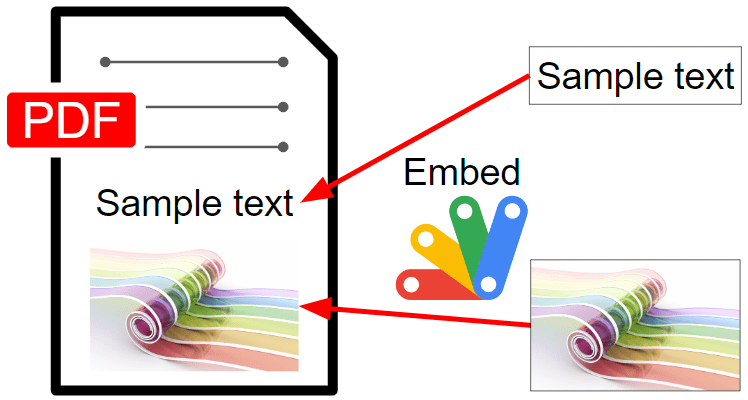
Это пример скрипта для встраивания объектов в PDF с помощью скрипта Google Apps.
Недавно у меня возникла ситуация, когда необходимо управлять PDF-файлами с помощью Google Apps Script. В то время у меня была ситуация, когда требуется встроить объекты текстов и изображений в PDF с помощью Google Apps Script. Итак, я создал следующий класс с помощью скрипта Google Apps. Когда этот класс используется, объекты текстов и изображений могут быть встроены в PDF.
Класс EmbedObjects
В этом классе загружается pdf-lib, а объекты текстов и изображений встраиваются в PDF с помощью pdf-lib. При тестировании следующих примеров сценариев сначала скопируйте и вставьте этот класс в редактор сценариев Google Apps Script. Примеры сценариев вызывают этот класс.
/**
 * ### Description
 * This is a Class object for embedding objects into PDF using Google Apps Script.
 *
 * Author: Tanaike ( https://tanaikech.github.io/ )
 */
class EmbedObjects {
  /**
   * ### Description
   * Constructor of this class.
   *
   * @return {void}
   */
  constructor() {
    this.cdnjs = "https://cdn.jsdelivr.net/npm/pdf-lib/dist/pdf-lib.min.js"; // or "https://cdnjs.cloudflare.com/ajax/libs/pdf-lib/1.17.1/pdf-lib.min.js"
    this.cdnFontkit = "https://unpkg.com/@pdf-lib/fontkit/dist/fontkit.umd.min.js";
    this.loadPdfLib_();
  }

  /**
   * ### Description
   * Embed objects into PDF using pdf-lib.
   *
   * @param {String} id File ID of PDF file. And, when you give the file ID of Google Docs files (Document, Spreadsheet, Slide), those are automatically converted to PDF data. You can also use it.
   * @param {Object} object Objects for embedding.
   * @return {Object} Blob of PDF including the updated PDF.
   */
  run(id, object) {
    if (!id || id == "") {
      throw new Error("Please set the file ID of PDF file. And, when you give the file ID of Google Docs files (Document, Spreadsheet, Slide), those are automatically converted to PDF data. You can also use it.");
    }
    if (!object || typeof object != "object") {
      throw new Error("Please an object for embeddig the objects.");
    }
    return new Promise(async (resolve, reject) => {
      try {
        const { updatedObject, customFontCheck } = this.updateObject_(object);
        const blob = DriveApp.getFileById(id).getBlob();
        const pdfData = await this.PDFLib.PDFDocument.load(new Uint8Array(blob.getBytes()));
        const numberOfPages = pdfData.getPageCount();
        const pdfDoc = await this.PDFLib.PDFDocument.create();
        if (customFontCheck) {
          this.loadFontkit_();
          pdfDoc.registerFontkit(this.fontkit);
        }
        const pages = await pdfDoc.copyPages(pdfData, [...Array(numberOfPages)].map((_, i) => i));
        for (let i = 0; i < pages.length; i++) {
          const page = pages[i];
          const forPage = updatedObject[`page${i + 1}`];
          if (forPage) {
            for (let j = 0; j < forPage.length; j++) {
              const o = forPage[j];
              if (o.imageFileId) {
                const image = await pdfDoc[o.method](o.imageBytes);
                if (o.scale) {
                  const updatedImage = image.scale(o.scale);
                  o.width = o.width || updatedImage.width;
                  o.height = o.height || updatedImage.height;
                } else {
                  o.width = o.width || image.width;
                  o.height = o.height || image.height;
                }
                delete o.imageBytes;
                delete o.method;
                delete o.imageFileId;
                delete o.scale;
                page.drawImage(image, o);
              } else if (o.text) {
                if (o.standardFont || o.customFont) {
                  o.font = await pdfDoc.embedFont(o.standardFont ? this.PDFLib.StandardFonts[o.standardFont] : o.customFont);
                }
                page.drawText(o.text, o);
              }
            }
          }
          pdfDoc.addPage(page);
        }
        const bytes = await pdfDoc.save();
        const newBlob = Utilities.newBlob([...new Int8Array(bytes)], MimeType.PDF, `new_${blob.getName()}`);
        resolve(newBlob);
      } catch (e) {
        reject(e);
      }
    });
  }

  /**
   * ### Description
   * Load pdf-lib. https://pdf-lib.js.org/docs/api/classes/pdfdocument
   *
   * @return {void}
   */
  loadPdfLib_() {
    eval(UrlFetchApp.fetch(this.cdnjs).getContentText().replace(/setTimeout\(.*?,.*?(\d*?)\)/g, "Utilities.sleep($1);return t();"));
  }

  /**
   * ### Description
   * Load fontkit. https://github.com/Hopding/fontkit
   *
   * @return {void}
   */
  loadFontkit_() {
    eval(UrlFetchApp.fetch(this.cdnFontkit).getContentText());
  }

  /**
   * ### Description
   * Update object.
   *
   * @param {Object} object Object for embedding objects into PDF.
   * @return {void}
   */
  updateObject_(object) {
    let customFontCheck = false;
    const updatedObject = Object.fromEntries(Object.entries(object).map(([k, p]) => [k, p.map(e => {
      if (e.imageFileId) {
        const imageBlob = DriveApp.getFileById(e.imageFileId).getBlob();
        const imageBytes = new Uint8Array(imageBlob.getBytes());
        const mimeType = imageBlob.getContentType();
        let method;
        if (mimeType == MimeType.PNG) {
          method = "embedPng";
        } else if (mimeType == MimeType.JPEG) {
          method = "embedJpg";
        } else {
          throw new Error("This image file cannot be used.");
        }
        e.method = method;
        e.imageBytes = imageBytes;
      } else if (e.text) {
        if (e.customFont) {
          customFontCheck = true;
          e.customFont = new Uint8Array(e.customFont.getBytes());
        }
      }
      return e;
    })]));
    return { updatedObject, customFontCheck };
  }
}
Ограничения
На текущем этапе объекты текстов и изображений могут быть встроены в PDF.
Подготовка
Прежде чем тестировать этот скрипт, подготовьте образец PDF. Изображение образца PDF выглядит следующим образом.
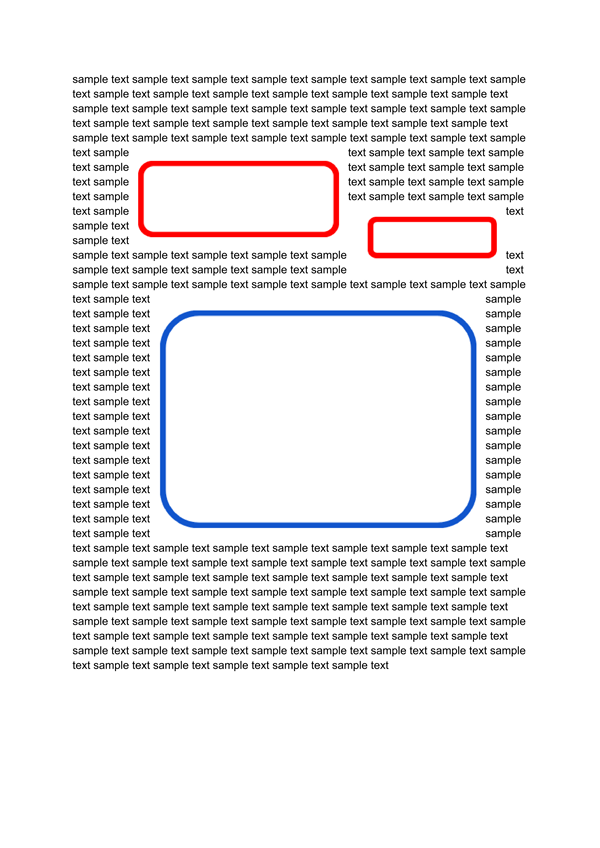
В этом примере PDF есть 2 красных квадрата и 1 синий квадрат. В этом примере сценария объекты текста и изображения встраиваются в красный и синий квадрат соответственно. Пример сценария выглядит следующим образом.
Вставка текстов и изображений в PDF
function sample() {
  const pdfFileId = "### file ID of PDF file ###"; // Or, when you use the file ID of Google Docs files (Document, Spreadsheet, Slide), those files are automatically converted to the PDF format.
  const object = {
    page1: [
      { text: "sample text1", x: 150, y: 635, standardFont: "Helvetica", size: 30 },
      { text: "sample text2", x: 390, y: 602, standardFont: "TimesRoman", size: 16 },
      { imageFileId: "### file ID of image file ###", x: 175, y: 340, scale: 0.35 },
    ],
  };
  const folderId = "### folder ID ###"; // New PDF is created in this folder.
  const EO = new EmbedObjects();
  EO.run(pdfFileId, object)
    .then(res => DriveApp.getFolderById(folderId).createFile(res))
    .catch(err => console.log(err));
}
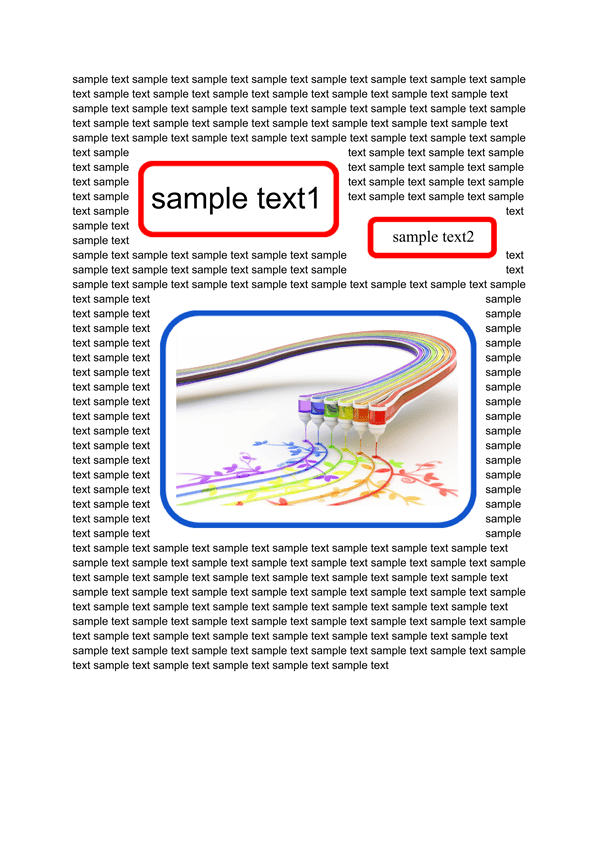
Когда этот сценарий запускается для приведенного выше примера PDF, получается следующий результат.
Примечание
- Если вы хотите использовать собственный шрифт, используйте
{ text: "sample text", x: 100, y: 100, customFont: DriveApp.getFileById("### file ID of font file ###").getBlob(), size: 24 }вobject. - Вы можете использовать стандартный шрифт здесь.
- О варианте текста можно посмотреть в официальном документе pdf-lib. Реф
- О варианте изображения вы можете ознакомиться в официальном документе pdf-lib. Реф
- В этом скрипте pdf-lib и fontkit загружаются в объект класса. Конечно, в этом случае вы также можете использовать библиотеку pdf-lib и сценарий fontkit, скопировав и вставив библиотеку сценариев, полученную из
https://cdn.jsdelivr.net/npm/pdf-lib/dist/pdf-lib.min.jsиhttps://unpkg.com/@pdf-lib/fontkit/dist/fontkit.umd.min.js, в редакторе сценариев Google Apps Script соответственно. В этом случае стоимость процесса его загрузки может быть снижена.
